
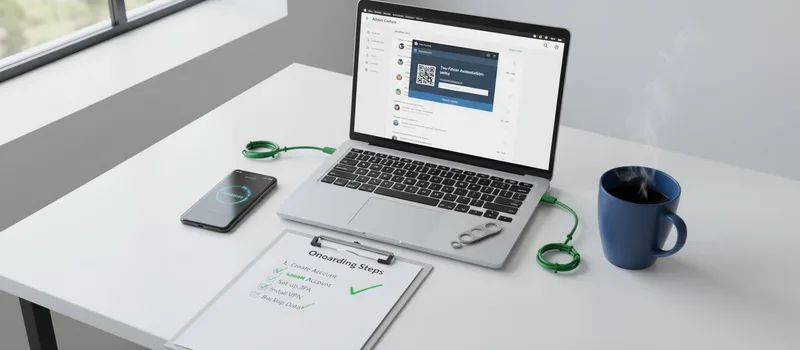
How to Implement MFA Across Your Business in One Afternoon (Complete Guide)
A patient died at Synnovis because multi-factor authentication was not enabled. Free controls. Minutes to implement. Catastrophic consequences when ignored.
You do not want to be the next case study. Here is your complete, practical guide to implementing MFA across your business. Today. Right now.
I am going to assume you have no cybersecurity background. I am writing this for the business owner who knows MFA is important but has no idea where to start. By the end of this guide, your organisation will have multi-factor authentication enabled on every critical system.
Let us get started.
Part 1: What You Are Actually Doing
Before we dive into configuration screens, let me explain what we are accomplishing.
Current situation: Your staff log in with just a username and a password. If those credentials are stolen (phishing, data breach, malware), attackers can log in as your staff and you will never know until it is too late.
After MFA: Your staff log in with a username, password, and a second factor (usually a code sent to their phone). Even if credentials are stolen, attackers cannot log in without physical access to your staff’s phones.
This is not theoretical protection. This is “Qilin ransomware gang cannot get into your systems even with stolen passwords” protection.
Part 2: The Four-Hour Implementation Plan
Here is the timeline:
Hour 1: Audit your systems and plan your approach
Hour 2: Configure MFA on your primary platform (Microsoft 365 or Google Workspace)
Hour 3: Enable MFA on critical secondary systems
Hour 4: Staff training and documentation
If you have more than 50 employees, add an extra hour for coordination. Otherwise, this is genuinely achievable in a single afternoon.
Hour 1: System Audit and Planning
Step 1: Create Your Systems Inventory
Open a spreadsheet. Create these columns:
-
System Name
-
What It Does
-
Who Uses It
-
Admin Access (Who has it?)
-
MFA Available (Yes/No/Unknown)
-
MFA Enabled (Yes/No)
-
Priority (Critical/High/Medium/Low)
Now list every system your business uses that requires a login:
-
Email platform (Microsoft 365, Google Workspace)
-
Accounting software (Xero, QuickBooks, Sage)
-
CRM system (Salesforce, HubSpot, Zoho)
-
Cloud storage (Dropbox, OneDrive, Google Drive)
-
HR systems (BambooHR, Breathe, Ciphr)
-
Payment processing (Stripe, PayPal, Square)
-
Website hosting control panel
-
Domain registrar
-
Social media management tools
-
Any industry-specific software
Do not skip anything. Every login is a potential attack vector.
Step 2: Prioritise Your Systems
Mark priority as follows:
Critical (Do Today):
-
Email platforms (highest priority)
-
Financial systems
-
Systems with customer data
-
Administrative accounts
High (Do This Week):
-
Cloud storage
-
HR systems
-
Website control panels
Medium (Do Within Two Weeks):
-
Social media tools
-
Project management software
-
Communication tools
Low (Do Within Month):
-
Systems with limited data access
-
Read-only tools
-
Non-critical services
Step 3: Choose Your MFA Method
You have three options:
Authenticator Apps (Recommended for Most)
-
Free apps on staff phones
-
Generate time-based codes
-
Work offline
-
Easy to use once set up
Examples: Microsoft Authenticator, Google Authenticator, Authy
Hardware Security Keys (Maximum Security)
-
Physical USB devices
-
Cost approximately £25 per user
-
Cannot be remotely compromised
-
Best for high-security environments
Examples: YubiKey 5 NFC, Titan Security Key
SMS Codes (Avoid If Possible)
-
Codes sent via text message
-
Vulnerable to SIM swapping
-
Better than nothing, but not ideal
For most small businesses, I recommend starting with authenticator apps. They are free, secure, and user-friendly once staff get used to them.
Hour 2: Configure Your Primary Platform
Most businesses run either Microsoft 365 or Google Workspace for email. We will tackle both.
Microsoft 365 MFA Setup
Prerequisites:
-
Global Administrator access
-
List of all users
-
30 minutes
Step-by-Step Process:
-
Go to the Microsoft 365 admin centre: https://admin.microsoft.com
-
Navigate to: Users > Active users
-
At the top of the page, click: Multi-factor authentication
-
This opens the multi-factor authentication page showing all your users
-
Select the users you want to enable MFA for (start with admins, then roll out to everyone)
-
In the right-hand panel under “quick steps,” click Enable
-
A popup will appear warning you about the change. Click enable multi-factor auth
-
Users will now be required to set up MFA the next time they log in
To Configure Per-User Settings:
-
Select a user and click service settings
-
Under “verification options,” I recommend enabling:
Notification through mobile app
-
Verification code from mobile app
-
Call to phone (backup only)
-
Disable “Text message to phone” if possible (unless users specifically need it)
To Enforce MFA Organisation-Wide (Recommended):
-
Go to Azure Active Directory admin centre: https://aad.portal.azure.com
-
Navigate to: Security > Conditional Access
-
Click + New policy
-
Name it: “Require MFA for All Users”
-
Under Assignments > Users:
Include: All users
-
Exclude: Create an emergency admin break-glass account
-
Under Assignments > Cloud apps:
Select: All cloud apps
- Under Access controls > Grant:
Select: Require multi-factor authentication
-
Set “Enable policy” to On
-
Click Create
This enforces MFA for all users across all Microsoft services.
Google Workspace MFA Setup
Prerequisites:
-
Super Admin access
-
List of all users
-
30 minutes
Step-by-Step Process:
-
Go to Google Admin console: https://admin.google.com
-
Navigate to: Security > Authentication > 2-Step Verification
-
Check the box: Allow users to turn on 2-Step Verification
-
To enforce for everyone, check: Enrollment
-
Set enforcement date (I recommend 7 days from now to allow preparation)
-
Uncheck: Allow users to trust their device
-
Click Save
To Configure Methods:
-
In the same menu, scroll to 2-Step Verification methods
-
Enable:
Google prompts (easiest for users)
-
Security keys
-
Google Authenticator
-
Consider disabling SMS if your organisation can manage without it
To Enforce Immediately for Admins:
-
Navigate to: Security > Authentication > 2-Step Verification
-
Scroll to Enforcement rules
-
Create a new rule targeting your admin organisational unit
-
Set enforcement to On with immediate effect
-
Admins will be required to enroll immediately
Hour 3: Enable MFA on Secondary Systems
Now work through your spreadsheet systematically.
General Process for Most SaaS Applications:
-
Log in as administrator
-
Go to Settings > Security (or similar)
-
Look for “Two-Factor Authentication,” “2FA,” or “Multi-Factor Authentication”
-
Enable it for your account first (to test)
-
Configure organisation-wide policies if available
-
Document the process for your staff
System-Specific Guides:
Xero:
-
Settings > Security
-
Enable two-factor authentication
-
Download authenticator app
-
Scan QR code
-
Enter verification code
Salesforce:
-
Setup > Identity > Multi-Factor Authentication
-
Enable “Require multi-factor authentication for all users”
-
Configure authentication methods
Dropbox Business:
-
Admin console > Settings > Authentication
-
Enable “Require two-step verification for all members”
-
Set enforcement date
WordPress: Install a plugin like Wordfence or iThemes Security that adds MFA capability. Configure in the plugin settings.
What If a Service Does Not Have MFA?
If a critical service does not offer MFA, you have three options:
-
Use Single Sign-On (SSO): Link the service to your Microsoft 365 or Google Workspace account, so MFA is enforced at the SSO level
-
Demand It: Contact the vendor and tell them you require MFA. If enough customers demand it, vendors will add it
-
Replace the Service: If a critical service does not offer basic security in 2025, they are not taking security seriously. Find a competitor who does.
Hour 4: Staff Training and Documentation
Your staff need to understand why you are doing this and how to use their new authentication method.
Create a Simple Staff Guide
Use this template:
IMPORTANT SECURITY UPDATE: Multi-Factor Authentication
What is changing?
Starting [DATE], you will need two things to log into your work accounts:
-
Your password (as usual)
-
A code from an app on your phone (new)
Why are we doing this?
We are protecting our business and your personal information. Even if someone steals your password, they cannot log in without your phone. This prevents the type of ransomware attack that killed a patient at an NHS facility earlier this year.
What you need to do:
- Download an authenticator app on your phone:
iPhone: Microsoft Authenticator or Google Authenticator
-
Android: Microsoft Authenticator or Google Authenticator
-
Next time you log into your email, you will be asked to set up MFA
-
Follow the on-screen instructions to scan a QR code with your app
-
Save the backup codes somewhere safe (not on your phone)
How it works:
-
Enter your username and password as usual
-
Your phone app will show a 6-digit code
-
Enter that code
-
You are logged in
The code changes every 30 seconds, so even if someone sees it, it will not work later.
What if I lose my phone?
Contact IT immediately. We have backup methods to recover your account. This is why backup codes are important - store them somewhere safe.
Questions?
Contact [IT CONTACT] for help.
Conduct a Brief Training Session
Gather staff (or do a video call) and:
-
Explain why you are implementing MFA (use the Synnovis case)
-
Show them how to download the authenticator app
-
Walk through the first-time setup process
-
Demonstrate daily use
-
Explain what to do if they lose their phone
-
Answer questions
This needs to be 15-20 minutes maximum. Do not over-complicate it.
Create Backup Procedures
Establish clear procedures for:
Lost Phones:
-
Who to contact
-
How quickly you can restore access
-
Temporary backup authentication methods
New Staff:
-
MFA setup included in onboarding
-
Who configures their accounts
-
Testing before their first day
Departing Staff:
-
Remove MFA devices immediately when staff leave
-
Revoke all authentication tokens
Part 3: The First Week After Implementation
Expect Some Friction
The first week will involve:
-
Staff forgetting their phones
-
Questions about how to use the authenticator app
-
Complaints about the extra login step
-
Technical issues with some devices
This is normal. Be patient. The inconvenience is minimal compared to the protection gained.
Monitor Adoption
Check your admin dashboards to verify:
-
Percentage of users with MFA enabled
-
Failed authentication attempts (potential issues or attack attempts)
-
Users requesting help or backup codes
Gather Feedback
Ask staff:
-
What problems are they experiencing?
-
Is the process confusing anywhere?
-
Do they need additional training?
Use this feedback to refine your process for future staff.
Part 4: Advanced MFA Strategies
Once you have basic MFA working, consider these enhancements:
Hardware Security Keys for High-Risk Users
Deploy FIDO2 security keys to:
-
Executives
-
IT administrators
-
Finance team members
-
Anyone with access to highly sensitive systems
Cost: £20-40 per user Benefit: Cannot be remotely compromised, even by sophisticated phishing
MFA for Physical Office Access
Some businesses are integrating digital authentication with physical security:
-
Use the same authenticator app for building access
-
Hardware security keys that work with door readers
-
Unified authentication across digital and physical security
Risk-Based Authentication
Microsoft 365 and Google Workspace can adjust MFA requirements based on:
-
Login location (require MFA from new locations)
-
Device trust (skip MFA on trusted devices)
-
Risk signals (require MFA if suspicious activity detected)
This reduces MFA fatigue while maintaining security.
Common Problems and Solutions
Problem: Staff say they cannot receive codes because they have no phone signal
Solution: Authenticator apps work offline. The codes are generated on the device, not sent over the network. Demonstrate this by putting your phone in airplane mode and showing codes still generate.
Problem: Staff want to skip MFA because it is inconvenient
Solution: Show them the Synnovis case. Ask if a few extra seconds at login is worth a patient dying. Make it about protection, not inconvenience.
Problem: The managing director refuses to use MFA because they are “too busy”
Solution: Executives are high-value targets. They need MFA more than anyone else. If they refuse, document this refusal in writing. When (not if) their account is compromised, you have evidence you tried to prevent it.
Problem: Our accounting software charges extra for MFA
Solution: This is unethical price gouging for basic security. Switch vendors. There are competitors who include MFA as standard. Name and shame the gougers by contacting us.
Problem: Authenticator app codes are not working
Solution: Check the phone’s time settings. If the phone’s clock is wrong by more than 30 seconds, codes will not sync. Enable automatic time in phone settings.
Your Action Plan Right Now
Stop reading. Start implementing.
In the next 10 minutes:
-
Create your systems inventory spreadsheet
-
Identify your primary email platform
-
Bookmark the relevant admin console
In the next hour:
-
Work through the Microsoft 365 or Google Workspace setup
-
Enable MFA for your own account first
-
Test the process
By end of business today:
-
Enable MFA on email for all staff
-
Configure at least one critical secondary system
-
Send initial communication to staff
This week:
-
Complete rollout to all critical systems
-
Conduct staff training
-
Establish backup procedures
This month:
-
Enable MFA on all remaining systems
-
Review and document processes
-
Schedule periodic audits
The Bottom Line
A patient died because multi-factor authentication was not enabled. The control was free. Implementation takes hours. The consequences of not implementing it are catastrophic.
You now have everything you need to implement MFA across your business. The only question is whether you will do it before or after your preventable disaster.
I strongly recommend before.
Implementation Resources
Resource Link
Microsoft Authenticator App (iOS) Download
Microsoft Authenticator App (Android) Download
Google Authenticator (iOS) Download
Google Authenticator (Android) Download
YubiKey Security Keys Yubico UK
Microsoft 365 MFA Documentation Microsoft Docs
Google Workspace 2FA Guide Google Support